Connect to your Minecraft server
Find your address
Section titled “Find your address”You can find your server address in two places:
- Under your server name at the top of the left menu, with a button to copy it.
- On the Network page, under Port Allocations, which shows the hostname and the port.
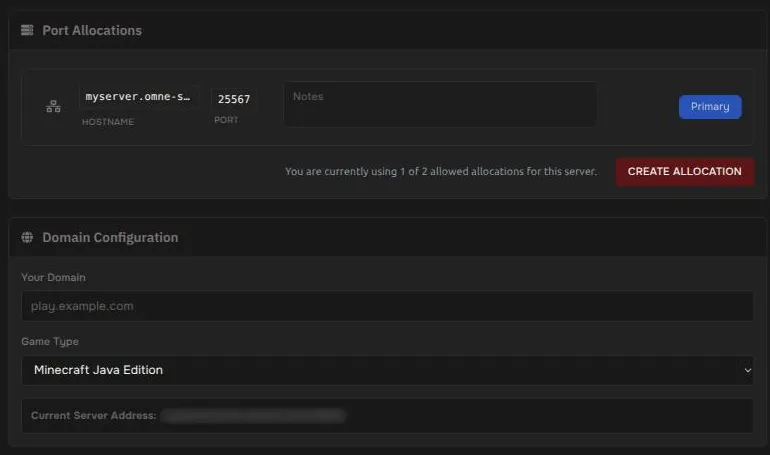
If you created a friendlier address, it is listed on the Subdomains page. See Use a subdomain.
Join on Minecraft: Java Edition
Section titled “Join on Minecraft: Java Edition”- Start your server and wait until it shows Online.
- In Minecraft, open Multiplayer and choose Add Server.
- Paste your address. If your port is not the default
25565, add it after a colon, for exampleyourname.example.com:25567. - Save and join.
Join on Minecraft: Bedrock Edition
Section titled “Join on Minecraft: Bedrock Edition”Open Servers, choose Add Server, and enter the address and the port in the separate fields. Your server must be a Bedrock server for Bedrock players to join.
Common errors
Section titled “Common errors”Connection timed out or connection refused. Check that the status next to your server name says Online. Check that you typed the correct port. If you just started the server, wait a minute and try again.
Outdated client or outdated server. Your Minecraft version has to match the server. Look at Startup, under Minecraft Version. See Change your Minecraft version.
You are not whitelisted. The whitelist is on. Add the player on the Players page. See Ops and whitelist.
Failed to verify username. Players must use a real Minecraft account when the server runs in online mode. You can check the Online Mode setting on the Properties page.
Still stuck? Open a ticket with the exact error message. See Contact support.