Launch your first game server: setup to running
Your server is set up automatically after payment, usually within minutes. Here is how to get it running.
Start your server
Section titled “Start your server”-
Order a plan on the storefront and complete checkout. Not sure yet? Try the free trial.
-
Log in to your client area and open Services. Click View next to your server.
-
On the service page, press Access Panel. This opens the game panel at
panel.omnehosting.com. If you use two-factor authentication on the panel, see Log in to the panel. -
Open your server from the panel’s server list.
-
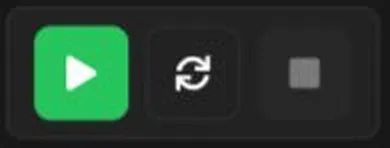
Press the green Start button in the power bar at the bottom of the page. The status next to your server name changes from Offline to Online when it is ready.
On a new Minecraft server, the console asks you to accept the Minecraft EULA the first time. Press I Accept. See Accept the Minecraft EULA.
Then follow Connect to your Minecraft server to join.
Minecraft: your server starts on Vanilla
Section titled “Minecraft: your server starts on Vanilla”A new Minecraft Java server starts on Vanilla Minecraft, the plain game with no mods or plugins. It is the base you build on:
- Want a modpack? Open Modpacks and install one. See Install a modpack.
- Want plugins? Open Minecraft Version and switch to Paper (or Purpur, Spigot, or Folia). Then the Plugins page appears. See Change your Minecraft version and Install plugins.
- Just want the plain game? Stay on Vanilla.
A quick tour of the panel
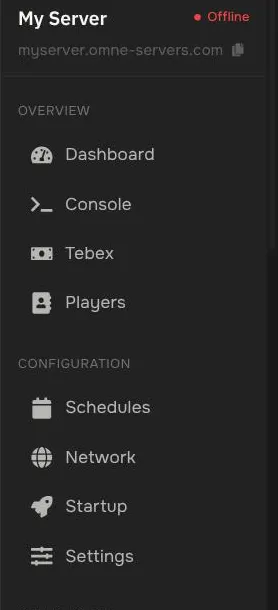
Section titled “A quick tour of the panel”The left menu is how you manage everything on your server.
| Menu item | What it is for |
|---|---|
| Console | Live server output and a box to type commands. |
| Players | Operators, whitelist, bans, and who is offline. See Ops and whitelist. |
| Schedules | Run tasks on a timer, such as automatic backups. |
| Network | Your address, port allocations, and domain settings. |
| Startup | Startup command, Java version, and game variables. See Startup settings. |
| Settings | Server name, switching server software, SFTP details, and Reinstall. |
| Files | Browse, edit, and upload server files. |
| Modpacks | Install a modpack (shown on Vanilla and modded servers). See Install a modpack. |
| Mods | Add single mods (shown when the server runs Forge, NeoForge, Fabric, or Quilt). See Install mods. |
| Plugins | Search and install plugins (shown on plugin software such as Paper). See Install plugins. |
| Subdomains | Create a friendly address such as yourname plus a domain. |
| Properties | Edit server.properties with a form. |
| Databases | Create databases for plugins that need one. |
| Backups | Create and restore backups. See Backups. |
| Users | Invite friends to help manage your server. |
| Activity | A log of actions taken on your server. |
| Splits | Carve part of your server’s resources off into a smaller server. See Splits. |
| Templates | One-click setups for plugins and other content. See Templates. |
| Server Importer | Move your files from another host. See Server Importer. |
| MCSetups | Prebuilt Minecraft setups (shown on Vanilla and plugin servers). See MCSetups. |
| Minecraft Version | Change version or software. See Change your Minecraft version. |
| Environment Variables | Edit .env files for apps. See Environment variables. |
Your menu can differ a little depending on your game and server software. For example, a modded server can show pages for mods and modpacks where a Paper server shows Plugins.
Stuck?
Section titled “Stuck?”Open a ticket or ask on Discord. See Contact support.