Bedrock players on a Java server: install Geyser and Floodgate
Minecraft has two editions that normally cannot play together: Java Edition (PC) and Bedrock Edition (phones, consoles, Windows 10/11). Two plugins bridge the gap:
- Geyser lets Bedrock players join your Java server.
- Floodgate lets Bedrock players join without a Java account. Without it, every Bedrock player needs a paid Java account.
This guide was tested on a real OmneHosting server running Paper (Geyser 2.11.3, Floodgate 2.2.5). Geyser’s server plugin also targets other Spigot-based plugin servers.
Before you start
Section titled “Before you start”1. Use a Minecraft version Geyser supports. Geyser is often a little behind the newest Minecraft release. In our test, Geyser failed to start on the newest Paper build (a brand-new, experimental Minecraft version) and worked on the latest stable version. If you see Error occurred while enabling Geyser-Spigot ... (Is it up to date?), your Minecraft version is too new for Geyser. See Change your Minecraft version and pick a Stable build.
2. Use plugin software. New servers start on Vanilla, which cannot run plugins. Switch to Paper first on the Minecraft Version page. See Change your Minecraft version.
3. Make a backup. See Backups.
Step 1: Install Geyser and Floodgate
Section titled “Step 1: Install Geyser and Floodgate”- Open Plugins in the left menu.
- Change Platform to Hangar. Hangar is PaperMC’s plugin site, so the files are built for Paper.
- Type
Geyserin the search box and press Install on the plugin Geyser (by GeyserMC). - Search
Floodgateand press Install on Floodgate (by GeyserMC).
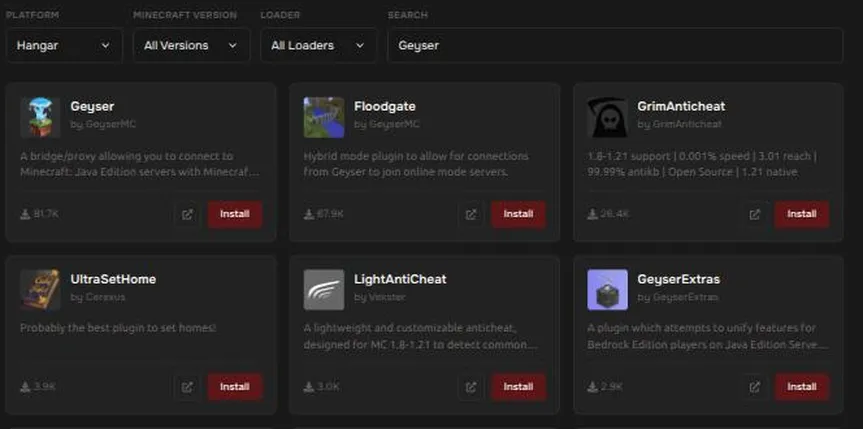
- Restart your server from the power bar. Both plugins create their settings folders on first start.
Step 2: Tell Geyser which port to use
Section titled “Step 2: Tell Geyser which port to use”By default Geyser tries to use port 19132, but your server can only be reached on the port assigned to it. The easiest fix is to make Geyser reuse your Java port:
-
Open Files, then the
pluginsfolder, thenGeyser-Spigot, and openconfig.yml. -
Find the
bedrock:section and change this line fromfalsetotrue:bedrock:clone-remote-port: true -
Find the
java:section and set the sign-in type so Floodgate can be used:java:auth-type: floodgate -
Save the file and restart your server.
-
Open Console. You should see a line like
Started Geyser on UDP port 25567. The number should match your Java port on the Network page.
Java uses the port over TCP and Bedrock uses the same number over UDP, so they do not conflict. Our network forwards both.
Step 3: Connect from Bedrock
Section titled “Step 3: Connect from Bedrock”On Minecraft Bedrock Edition:
- Open Play, then Servers, then Add Server.
- Enter a name, your server address, and the port. Use the same address and port that Java players use (see Connect to your Minecraft server).
- Save it and join.
Bedrock player names
Section titled “Bedrock player names”Floodgate marks Bedrock players so they cannot be confused with Java players:
- Their name gets a prefix. The default is a dot, so a Bedrock player called
Steveappears as.Steve. - Spaces in their name become underscores by default.
When you use commands, permissions, or the whitelist for a Bedrock player, use the name with the dot, for example .Steve. The prefix can be changed in plugins/floodgate/config.yml (username-prefix).
Using a second port instead (optional)
Section titled “Using a second port instead (optional)”If you would rather keep Java and Bedrock on separate ports:
- Open Network and press Create Allocation. Your plan limits how many ports you can have. See Network and ports.
- In Geyser’s
config.yml, setport:underbedrock:to that new port and leaveclone-remote-portasfalse. - Restart and check the Console line
Started Geyser on UDP port ...shows your new port.
Only ports listed on your Network page work. Geyser cannot use a port that was not assigned to your server.
Troubleshooting
Section titled “Troubleshooting”Error occurred while enabling Geyser-Spigot (Is it up to date?)
Section titled “Error occurred while enabling Geyser-Spigot (Is it up to date?)”Why it happens: Your Minecraft version is newer than the Geyser build you installed supports.
How to fix it:
- Switch to a Stable Minecraft build. See Change your Minecraft version.
- Restart. If the newest version is the one you need, wait for a Geyser update and update it from Plugins, then Installed.
Console says “Started Geyser on UDP port 19132” but Bedrock players cannot connect
Section titled “Console says “Started Geyser on UDP port 19132” but Bedrock players cannot connect”Why it happens: Only the ports assigned to your server are reachable. Port 19132 is not assigned to you.
How to fix it: Set clone-remote-port: true (Step 2), or set port: to your extra port, then restart.
Bedrock players see “Please connect through the official Geyser”
Section titled “Bedrock players see “Please connect through the official Geyser””Why it happens: Floodgate does not trust the connection, usually because Geyser and Floodgate are not sharing the same key.
How to fix it: Make sure both plugins are installed on the same server and that Geyser’s auth-type is floodgate. Restart. If it continues, open a ticket. See Contact support.
Bedrock players cannot join after Minecraft Bedrock updates
Section titled “Bedrock players cannot join after Minecraft Bedrock updates”Why it happens: Geyser supports current Bedrock versions. After a Bedrock update, Geyser needs an update too.
How to fix it: Update Geyser from Plugins, then Installed, and restart.
Players still need a Java account
Section titled “Players still need a Java account”Why it happens: Floodgate is missing or auth-type is still online.
How to fix it: Install Floodgate (Step 1) and set auth-type: floodgate (Step 2).
Still stuck?
Section titled “Still stuck?”Open a ticket or ask on Discord. See Contact support.