Minecraft startup and crash errors: what each message means
This page covers messages you see in the panel Console when a Minecraft Java server will not start, stops by itself, or crashes. For a general checklist, see Server won’t start. For players who see errors when joining, see Can’t connect errors.
You need to agree to the EULA in order to run the server
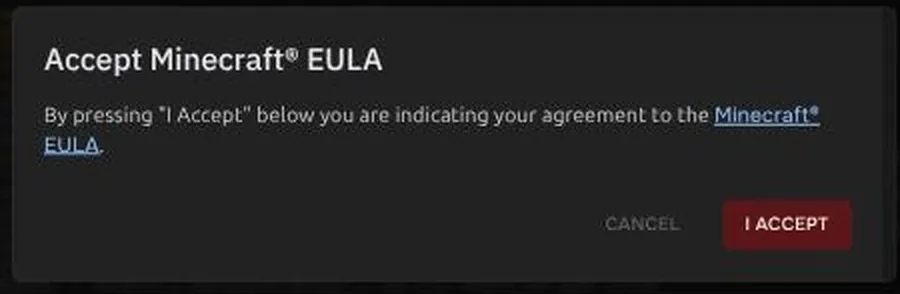
Section titled “You need to agree to the EULA in order to run the server”WARN: Failed to load eula.txtINFO: You need to agree to the EULA in order to run the server. Go to eula.txt for more info.Why it happens: Minecraft requires you to accept Mojang’s EULA. On a new server, eula.txt says eula=false, so the server stops on its first start. The panel may then try to start it again by itself.
How to fix it:
- Open Console. The panel shows an Accept Minecraft EULA dialog. Press I Accept, and the server starts.
- If you do not see the dialog, open Files, edit
eula.txt, changeeula=falsetoeula=true, save, and press Start.
Failed to bind to port / Address already in use
Section titled “Failed to bind to port / Address already in use”**** FAILED TO BIND TO PORT!The exception was: java.net.BindException: Address already in usePerhaps a server is already running on that port?Why it happens: The server tried to use a port that is not free. Usually server-port does not match your allocation, server-ip in Properties is set to something other than blank, or another process in the same server is holding the port (for example a plugin that opens its own web port on the same number).
How to fix it:
- Open Network and note your Primary allocation port.
- Open Properties and set
server-portto that port, or use the port the panel already set. - Leave
server-ipempty. - If a plugin also opens a port (a map or web dashboard), give it a different allocation from Network (Create Allocation) or turn the plugin’s web feature off.
- Press Restart.
UnsupportedClassVersionError
Section titled “UnsupportedClassVersionError”java.lang.UnsupportedClassVersionError: ... has been compiled by a more recent version of the Java Runtime (class file version 65.0), this version of the Java Runtime only recognizes class file versions up to 61.0Why it happens: The server or a plugin needs a newer Java than the one your server is using. Typical requirements: 1.18 to 1.20.4 needs Java 17, 1.20.5 up to 1.21.x needs Java 21, and the newer year-based versions (26.1 and up, released in 2026) need Java 25. Older versions (1.17 and below) run on older Java, and old versions usually also run on a newer Java. The class file numbers in the error map to Java versions: 61 is Java 17, 65 is Java 21, 69 is Java 25.
How to fix it:
- Open Startup.
- In the Docker Image dropdown (an advanced setting), choose the Java version that matches your Minecraft version (for example Java 21 for 1.21.x, Java 25 for 26.1 and newer).
- Press Restart.
- If the error names a plugin or mod, that file needs a newer Java or a different build. Update or remove it. See Plugin problems.
- If you are unsure which Java to use, open a ticket.
Could not reserve enough space for object heap
Section titled “Could not reserve enough space for object heap”Error occurred during initialization of VMCould not reserve enough space for object heapWhy it happens: The startup command asks Java for more memory than your server has. Editing -Xmx or the memory value in the Startup command to a bigger number causes this.
How to fix it:
- Open Startup.
- Click Reset to Egg Default to restore the command, then Save.
- Restart.
- If you want more memory, see Upgrade.
java.lang.OutOfMemoryError: Java heap space
Section titled “java.lang.OutOfMemoryError: Java heap space”Why it happens: The server ran out of memory. Large worlds, many players, heavy plugins or mods and big view distances use a lot.
How to fix it:
- Lower
view-distanceandsimulation-distancein Properties. - Remove heavy plugins or mods.
- Pre-generated worlds or huge farms also cost memory.
- See Out of memory for the full walkthrough.
Unable to access jarfile server.jar
Section titled “Unable to access jarfile server.jar”Error: Unable to access jarfile server.jarWhy it happens: The server jar the startup command points to is missing or has a different name. It can happen after a reinstall, a failed version change, or after deleting files.
How to fix it:
- Open Files and check if the jar exists in the main folder.
- Open Startup and check the server jar variable matches the real file name.
- If the jar is gone, use Settings > Reinstall Server only after making a backup. Reinstalling may overwrite config files. See Change version.
Error: Invalid or corrupt jarfile
Section titled “Error: Invalid or corrupt jarfile”Why it happens: The jar was not fully downloaded, or is not a Java jar (for example an HTML download page saved as .jar).
How to fix it:
- Delete the jar in Files.
- Upload a fresh copy from the official site, or use Reinstall Server. Back up first.
- Check the file size looks normal (not just a few KB).
Exception in thread “main”
Section titled “Exception in thread “main””Exception in thread "main" java.lang.NoClassDefFoundError / java.lang.ExceptionInInitializerErrorWhy it happens: Something failed while the server was starting up. The lines below the message say what. Common causes are a wrong Java version, a broken jar, or a bad mod or plugin.
How to fix it:
- Scroll up in the Console and read the lines just below the message.
- Match them against the other entries on this page.
- If a plugin or mod is named, remove it from Files and start again.
Failed to start the minecraft server
Section titled “Failed to start the minecraft server”Failed to start the minecraft serverjava.lang.IllegalStateException / net.minecraft.ReportedExceptionWhy it happens: This is a general message. The real cause is in the lines that follow, for example a broken world, bad config or datapack.
How to fix it:
- Read the lines after this message to find the real cause.
- Check
logs/latest.login Files for the full text. - If it names a world file, restore a backup. See Backups.
Failed to load level / level.dat corrupted / region file corruption
Section titled “Failed to load level / level.dat corrupted / region file corruption”Failed to load level.dat, restoring from level.dat_oldjava.io.IOException: ... region file ... r.0.0.mcaWhy it happens: The world files were damaged, often by a crash while saving or by a full disk.
How to fix it:
- Check the disk is not full. See Disk full.
- Restore the world from a backup. See Backups.
- For deeper repair options, see World problems.
Ticking entity / Ticking block entity crash
Section titled “Ticking entity / Ticking block entity crash”Exception ticking world / Ticking entity / Ticking block entityWhy it happens: One entity or block (usually from a mod or plugin, or a corrupt chunk) crashed the game. The report names it and shows coordinates.
How to fix it:
- Open the crash report in Files under
crash-reports/. - Note the coordinates and entity or block name in the report.
- Remove the mod or plugin that owns it, or restore an earlier backup.
- See World problems and Mod problems.
Can’t keep up! Is the server overloaded?
Section titled “Can’t keep up! Is the server overloaded?”[Server thread/WARN]: Can't keep up! Is the server overloaded? Running 5000ms or 100 ticks behindWhy it happens: The server could not finish its work on time. Players will see lag. It is not a crash by itself but can lead to one.
How to fix it:
- Lower
view-distancein Properties. - Remove heavy plugins, mobs and farms.
- See Lag and performance.
Watchdog / A single server tick took 60.00 seconds
Section titled “Watchdog / A single server tick took 60.00 seconds”A single server tick took 60.00 seconds (should be max 0.05)Considering it to be crashed, server will forcibly shutdown.Why it happens: The server froze for a long time, so the watchdog stopped it. Common causes are a plugin or mod stuck in a loop, a huge world action, or too little memory.
How to fix it:
- Look at the thread dump printed just after the message. It shows which plugin or mod was running.
- Remove or update that plugin or mod.
- Check memory. See Out of memory.
Failed to load datapacks / Unknown biome / worldgen errors after a version change
Section titled “Failed to load datapacks / Unknown biome / worldgen errors after a version change”Failed to load datapacks, can't proceed with server loadUnknown biome / Failed to parse ... worldgenWhy it happens: A datapack made for another version, or an older world that uses removed biome data, cannot be read by the new version.
How to fix it:
- Open Files, go into your world folder, then
datapacks, and remove the pack that fails. - If you changed versions on purpose, restore a backup from before the change and follow Change version.
- Worlds cannot go backwards to an older version safely.
Could not load plugin
Section titled “Could not load plugin”Could not load 'plugins/Example.jar' in folder 'plugins'org.bukkit.plugin.InvalidPluginExceptionWhy it happens: The plugin file is broken, is not for this server software, or needs a different Java.
How to fix it:
- Download a fresh copy of the plugin for your server software and version.
- Delete the failing jar from Files >
plugins. - See Plugin problems.
Unsupported API version
Section titled “Unsupported API version”Could not load 'plugins/Example.jar': Unsupported API version 1.21Why it happens: The plugin was built for a newer Minecraft than your server.
How to fix it:
- Either update the server. See Change version.
- Or use an older release of the plugin that supports your version.
Missing plugin dependency (Unknown dependency)
Section titled “Missing plugin dependency (Unknown dependency)”Could not load 'plugins/Example.jar': Unknown/missing dependency plugins: [Vault]Why it happens: The plugin needs another plugin to be installed and working first.
How to fix it:
- Note the name in the brackets.
- Install that plugin (see Plugins).
- Restart the server.
NoClassDefFoundError / Error occurred while enabling
Section titled “NoClassDefFoundError / Error occurred while enabling”Error occurred while enabling Example v1.0 (Is it up to date?)java.lang.NoClassDefFoundError: ...Why it happens: The plugin was built for another version of the server software or is missing a library it needs.
How to fix it:
- Update the plugin and its dependencies.
- Make sure the plugin supports your server software (Paper, Spigot, Purpur, Folia). Folia needs plugins that say they support Folia.
- Remove the plugin to confirm it is the cause. See Plugin problems.
Mod errors: missing mod dependency, duplicate mod, wrong loader
Section titled “Mod errors: missing mod dependency, duplicate mod, wrong loader”Mod X requires mod Y / Duplicate mod / Mod was built for Fabric but this is ForgeWhy it happens: Mods need other mods, the right loader (Forge, NeoForge, Fabric, Quilt) and the right Minecraft version. Two copies of the same mod also stop startup.
How to fix it:
- Read the message to see which mod is missing or duplicate.
- In Files >
mods, remove duplicates and add the required mods. - Confirm the loader and version match. See Server software and Mod problems.
Mixin apply failed / Mixin transformation failed
Section titled “Mixin apply failed / Mixin transformation failed”Mixin apply for mod X failed ... InvalidInjectionExceptionWhy it happens: A mod tried to change game code that is different in your version, or clashes with another mod.
How to fix it:
- Note the mod named in the error.
- Update it, or remove it. Check its page for the right version.
- If two mods clash, remove one at a time to find the pair.
server.properties syntax errors / bad values
Section titled “server.properties syntax errors / bad values”Failed to parse ... server.properties / NumberFormatException: For input stringWhy it happens: A value in Properties has the wrong type (letters in a number field) or a bad line.
How to fix it:
- Open Properties or edit
server.propertiesin Files. - Fix the value named in the error. Keep the format
name=valuewith no extra spaces. - If unsure, delete the file and let the server create a fresh one on next start. Back up first. See Server settings how-to.
Bad server-ip setting (cannot assign requested address)
Section titled “Bad server-ip setting (cannot assign requested address)”java.net.BindException: Cannot assign requested addressWhy it happens: server-ip in Properties is set to an address that does not belong to the server.
How to fix it:
- Open Properties.
- Clear the
server-ipvalue so it is empty. - Save and start the server.
Server stays stuck in an installation or “Setup” state
Section titled “Server stays stuck in an installation or “Setup” state”Why it happens: The panel shows “This server is currently running its installation process and most actions are unavailable.” while software is being set up. If it stays that way, the install may have failed.
How to fix it:
- Wait a few minutes and refresh the page.
- If nothing changes, open a ticket with the server name. We can check the install.
- Do not press Reinstall unless you have backed up your data.
Server stops right after starting, no error
Section titled “Server stops right after starting, no error”Why it happens: The server may have been stopped by the panel, crashed with the last lines missed, or started with a bad startup command.
How to fix it:
- Scroll up in the Console to the first error.
- Check
logs/latest.logandcrash-reports/in Files. - Open Startup and click Reset to Egg Default.
- See Keeps restarting.
Exit code 1, 137 or 143
Section titled “Exit code 1, 137 or 143”Exit code: 137Out of memory: falseWhy it happens: Exit code 1 means the program hit an error and quit. 137 means it was forcibly killed (signal 9), often because it ran out of memory, or because Kill was pressed or a stop took too long. 143 means it was asked to stop (signal 15), which is normal after Stop or Restart.
How to fix it:
- For 1: read the lines above it in the Console for the real error.
- For 137: if “Out of memory: true” shows, see Out of memory.
- For 143: no fix is needed if you pressed Stop or Restart.
- If it keeps happening, see Keeps restarting.
Stuck on “Preparing spawn area”
Section titled “Stuck on “Preparing spawn area””Preparing spawn area: 0%Why it happens: The server is generating or loading the spawn chunks. On a slow world, large world border or heavy world data this can take long. It can also hang if the world data is damaged.
How to fix it:
- Wait several minutes for the first start of a new world.
- Check for “Can’t keep up” or errors in the Console.
- If it never finishes, restore a backup or see World problems.
“Done!” appears but players cannot join
Section titled ““Done!” appears but players cannot join”Why it happens: The server started, so the problem is the address, whitelist, version or a plugin.
How to fix it:
- Compare the address players use with the Network page.
- Check
server-ip(should be empty) andserver-portin Properties. - See Can’t connect errors.
Still stuck?
Section titled “Still stuck?”Open a ticket or ask on Discord. See Contact support. Please paste the first error lines from the Console and say what you changed just before the problem started.