Upload and manage files: file manager and SFTP
The file manager
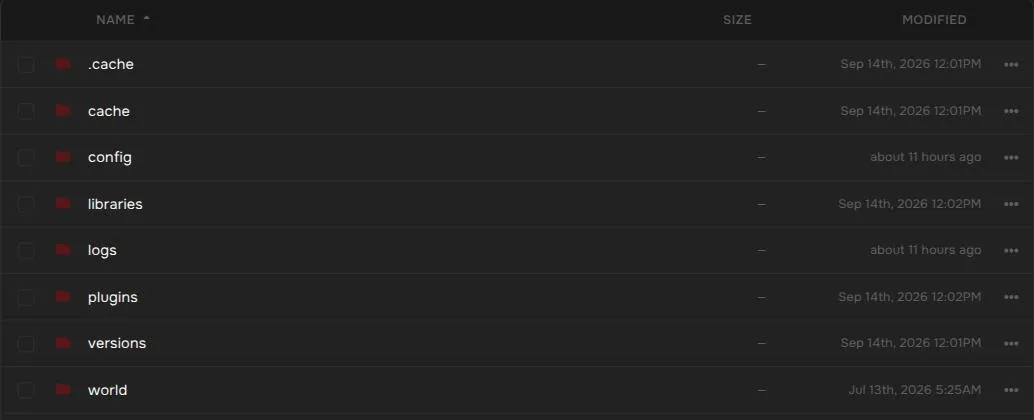
Section titled “The file manager”Open Files in the left menu. The top bar lets you create a New file or folder, Upload files from your computer, and pull a file from a web address.
Right-click a file or folder, or use the … button on its row, for these actions: Rename, Move, Permissions, Archive, and Delete. Files also offer Copy and Download, and archives offer Unarchive.
Good to know:
- Stop your server before deleting or moving important files such as a world.
- Uploads through the browser are limited in size. By default the limit is 100 MB per upload, so use SFTP for anything larger.
- The built-in editor cannot open very large files. By default the limit is a few megabytes. Download the file or use SFTP instead.
- Archive bundles files into one compressed file, which is handy for downloading a whole folder. Unarchive extracts one.
SFTP for large transfers
Section titled “SFTP for large transfers”Use an SFTP program such as FileZilla or WinSCP for large folders like a full world or a modpack.
- Open Settings in the left menu and go to the SFTP Access tab.
- Copy the address, port, and username shown there into your SFTP program. The port is usually
2022, and the username has the formyouraccount.serverid. - Use your panel account password to connect.
You can also sign in with an SSH key instead of a password. See Account security.
If you invited other people to your server, they need the file and SFTP permissions to use SFTP. See Users and permissions.
Upload a world
Section titled “Upload a world”Stop your server, upload your world folder next to the existing world folder, then follow Regenerate your world to point level-name at the new folder name.