Install Minecraft mods: add and remove on a modded server
The Mods page appears in the left menu when your server runs a mod loader: Forge, NeoForge, Fabric, or Quilt. You get one automatically when you install a modpack, or when you switch your software to a mod loader in Minecraft Version.
On the plain Vanilla server that new servers start on, and on plugin servers such as Paper, you will not see this page. Plugin servers use Plugins instead.
Find and install a mod
Section titled “Find and install a mod”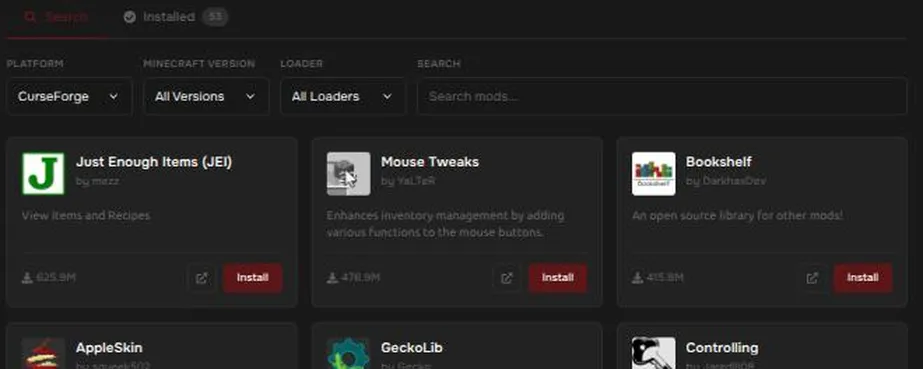
- Open Mods in the left menu.
- On the Search tab, choose a Platform (Modrinth or CurseForge), a Minecraft Version, and a Loader. Match them to your server.
- Search for a mod and press Install on it.
- Restart your server so the mod loads.
The Installed tab shows how many mods you have. Mods that are already installed show a red trash icon, which removes them.
Make sure a mod fits your server
Section titled “Make sure a mod fits your server”- The mod must be built for your Minecraft version and your loader (Forge, NeoForge, Fabric, or Quilt). A Fabric mod will not run on Forge.
- Many mods need another mod to work, for example a library mod. If the server does not start, check the Console for a message about a missing mod.
- Some mods are meant for players only and do not belong on a server.
- Players need the same mods on their own game as the server has, in most cases.
If your server will not start after adding a mod
Section titled “If your server will not start after adding a mod”Remove the mod you just added, then start again. See Minecraft mod problems and My server won’t start.